

Overview
Sygna has completed its integration with VerifyVASP. Whether you use Sygna Bridge, Sygna Hub, or Sygna Gate, you can now send transaction requests to VerifyVASP members through the Sygna Bridge protocol.
Before you start cross-protocol transactions with VerifyVASP members, read this document and set up your response handling for each of the transaction scenarios described below.
Terms & Status
| Term | Definition |
|---|---|
| BVRC code | Beneficiary VASP Reject Code. The Sygna protocol uses these codes to give the reason a transfer was rejected, for example BVRC008. |
| CDD | Customer due diligence. Extra questions about the customer that the two VASPs exchange during a transfer. Not the same as CPDD. |
| CPDD | Counterparty due diligence. A check that two VASPs perform on each other before they connect. Not the same as CDD. |
| IVMS101 | The interVASP Messaging Standard data format for originator and beneficiary information. |
| Permission request | A request that asks the VV member to verify a transfer. VerifyVASP calls this a user verification. |
| Status inquiry | A request from a VV member to check the status of your transfer. |
| Verdict | The result of a permission request: ACCEPTED or REJECTED. |
| VV Connect | A VerifyVASP setting that a VV member turns on for each VASP it transacts with. |
| Status | Applies to | Meaning |
|---|---|---|
WAIT | VerifyVASP | The VV member is holding the request until you respond. |
Blocked | Sygna Hub, Sygna Gate | The request is on hold for review. |
Expired | Sygna Hub, Sygna Gate | The transfer’s expire_date has passed. |
How It Works
In a withdrawal scenario, Travel Rule data passes through a message converter, the VerifyVASP gateway, which sits between Sygna Bridge and VerifyVASP. The gateway:
Forwards permission requests from the Sygna originating VASP to the VerifyVASP beneficiary VASP (steps 2–3 in the diagram).
Returns the beneficiary VASP’s response to the Sygna originating VASP (steps 6–7 in the diagram).
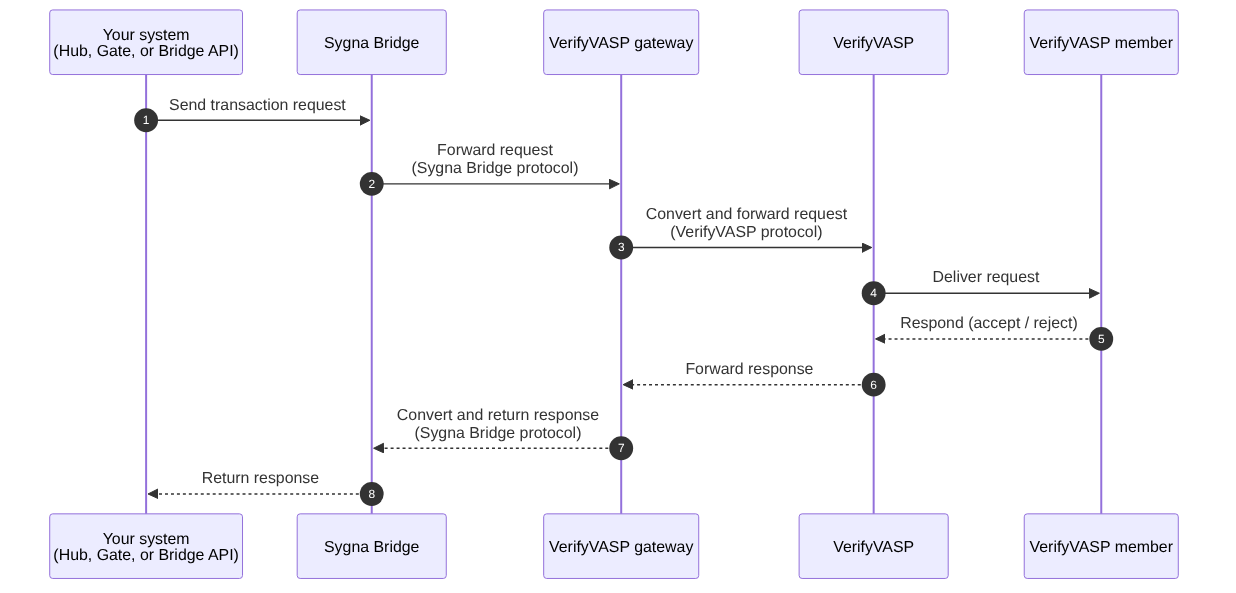
- VerifyVASP (VV) is a separate Travel Rule network. VV members are VASPs in that network.
- Published VV members appear in your counterparty list like any other Sygna member. You send address validations, permission requests, transaction IDs, and cancellations to them the same way.
- No VV setup is needed. The VerifyVASP gateway handles message conversion, so you don’t need a VV account, credentials, or VV-specific code.
- Personal data stays end-to-end encrypted. The gateway cannot decrypt it.
| Type | How to use | Directions |
|---|---|---|
| Sygna Hub user | Sygna Hub backend API or frontend console | Enter the transfer details. Sygna Hub builds and signs the message automatically. |
| Sygn Gate user | Sygna frontend console | Enter the transfer details. Sygna Gate builds and signs the message automatically. |
| Sygna Bridge user | Sygna Bridge API | Build private_info in IVMS 101.2023 format and encrypt it, then sign each message. |
Feature compatibility with VerifyVASP
| Feature | Whether the feature is supported |
|---|---|
| Finding counterparty VASP | Supported. A VV member doesn’t appear if it runs a version earlier than 3.0.0 or hasn’t reported its version yet. If you can’t find a VV member, contact the Sygna team at [email protected]. Note: You can exchange data with a VV member only if it has turned on VV Connect for your VASP. For details, see Before You Start, step 1. |
| Wallet address verification (user account verification) | Supported. Note: Address validation checks only the address. It doesn’t verify the customer’s name or any other personal information. |
| Permission request (user verification) | Supported. The VV member usually answers within seconds, but in a few cases may take longer. Only a VERIFIED result will become ACCEPTED, the others will turn into REJECTED. However, a transfer could be pending if Bridge cannot redirect the permission request to VV gateway successfully (see Before You Start, step 1). |
| Beneficiary address | Supported. One beneficiary address per transfer. You can send only one beneficiary address in each transfer to a VV member. If you send more than one, it returns BVRC999. In Hub and Gate, it is not allowed to input more than one address when you create a permission reqeust, otherwise you get error 03010. To send to multiple addresses, create a separate transfer for each one.Note: BTC, BCH, LTC, and ZEN are the exception. |
| Transaction ID (txid) | Supported. Send the txid once, after you send the assets on-chain. You can send it at any point in the transfer, unless the transfer has been canceled. Send only one txid per transfer. If you send the same txid again, it’s ignored and isn’t forwarded to the VV member. If you send a different txid, it replaces the earlier one, but don’t rely on this behavior. You can also send a txid after a transfer is rejected. The VV member keeps the txid, which helps it find the transfer and return funds if needed. On Sygna, the transfer’s status stays REJECTED. |
| Cancellation | Partially supported. You can cancel a permission request only before you send a txid and before the permission request is rejected. After you send a txid, you cannot cancel the request. If you try to cancel a rejected request, the Bridge API returns 010417, and Hub and Gate return 03059. When a cancellation is refused, the VV member is not notified. |
| Transaction status | Supported.
Please note that a 'status inquiry' never shows whether the transaction is confirmed on-chain. |
Send CDD as the Originator (Bridge API: POST /transaction/cdd) | Not supported. Bridge responds with HTTP 200 OK and err_code 010408. Nothing is sent to the VV member. Check the err_code field in the response body, not just the HTTP status code. |
| Send CDD as the Originator (Hub and Gate) | Not supported. VV members don’t support this feature, so nothing is sent to the VV member. Hub and Gate still send the request to Sygna Bridge in the background, and the transfer’s data_transfer_remarks field shows error 010408. |
Request CDD as the Beneficiary (Bridge API: POST /transaction/cdd-request) | Not supported. Bridge responds with HTTP 200 OK and err_code 010408. Nothing is sent to the VV member. |
| Request CDD as the Beneficiary (Hub and Gate) | Not supported. If a request doesn’t include enough information, reject it and explain why in |
other_cdd_info in a permission request | Supported, for sending information only.
|
is_self_transfer, transaction.txid in a permission request | Partially supported. The VV member accepts this data but may ignore it. Sending it doesn’t cause an error. |
| Expiry | Partially supported. VerifyVASP doesn’t enforce expire_date. On the Sygna side:
|
BTC vout | Not supported. Sygna Bridge doesn’t forward this data to the VV member. |
Before You Start
Complete these steps before you exchange Travel Rule data with VV members.
1. Connect with each VV member
VerifyVASP requires a separate connection between each pair of VASPs, and this rule also applies to Sygna members. You set up each connection once:
- Email the Sygna team at [email protected] with a list of the VV members you want to connect with.
- The Sygna team coordinates counterparty due diligence (CPDD) between your VASP and each VV member.
- After CPDD is complete, the VV member turns on VV Connect for your VASP.
You can then exchange Travel Rule data with that VV member. To get a test environment, see step 5. Test.
If you're not connected
| Request | Result |
|---|---|
| Address validation | Fails immediately with 010396 (HTTP code 503, "endpoint of address validation is not available now"). |
| Permission request, address validation ON | Fails immediately with 010396. |
| Permission request, address validation OFF | Gets no response. Bridge retries 3 times over about 30 seconds, then stops. The transfer stays pending. |
You get the same results if the VV member's account is disabled or its server is down. 010396 can also mean that the VV member's system couldn't reach a decision.
If you get 010396, check that your connection with the VV member is complete. If it isn't, ask the Sygna team to start CPDD. If it is, try again later.
Pending transfers: VV doesn't enforce expire_date.
- Hub and Gate mark the transfer as
Expiredafterexpire_date(default: 30 days). - Bridge never closes the transfer. Set your own timeout, then cancel the transfer.
Always validate the address first. Turning off address validation doesn't avoid the error. You still get no response, and you lose the early 010396 warning.
- Hub and Gate:
need_validate_addressis ON by default. - Bridge API: set
need_validate_addrtotrue. It's OFF if you leave it out.
2. Prepare your data
| Item | Requirement | If missing or wrong |
|---|---|---|
| Beneficiary name | Send both the surname and the given name. Each VV member applies its own matching rules, so a match doesn't guarantee that the full name matched. | BVRC007 |
| Originator data | Send the name, address, identification number, and date and place of birth. | BVRC006 if only a name is sent. Otherwise BVRC999, with the missing field named in reject_message. For example, a legal person sent without a registered address returns HEAD_OFFICE_GEOGRAPHIC_ADDRESS. |
| IVMS version (Bridge API) | Send IVMS 101.2023. Don't rely on the legacy format. | A 2020-format payload labeled 101 is rejected, with a message that names the version. |
| Beneficiary address | Send one transfer per address. | |
| Tag or memo | For XRP and other assets that use a tag or memo, send it in addr_extra_info. | BVRC008 |
| Signature (Bridge API) | Sign again after any change to the data. | HTTP 403 (010205 or 010213). No transfer is created. |
| Duplicates | Don't resend a permission request after you receive a verdict. | 010217 |
3. Check the asset
The VV protocol has no list of supported assets. Each VV member decides which assets it supports. To avoid name mismatches, the Sygna platform value of your asset must match a network name in the VerifyVASP Network Standard. Most common assets match, including BTC, ETH, XRP, SOL, TRX, USDT (Ethereum and Tron), and USDC (Ethereum).
Use address validation to check the asset before you send. If the asset or network can't be matched:
- Address validation usually returns
is_valid=falsewithUNKNOWN-SYMBOLorUNKNOWN-NETWORK. - If address validation is OFF, the permission request is rejected with
BVRC001.
4. Prepare to receive
- Register callbacks (Bridge API). Register callbacks for address validation, permission requests, txids, and cancellations. Without them, you can't receive these messages.
- Respond quickly. A VV member waits in
WAITuntil you respond, with no time limit. Hub and Gate hold some requests asBlocked, and someone must act on them in the UI. See Scenarios and Flows. - Know the originator data requirements (Hub and Gate). By default, an incoming request must include the originator's name and at least one other personal information field. Otherwise it's rejected with
BVRC006. - Check both name parts. VV members send both the surname and the given name. Sygna treats the given name (first name or middle name) as optional, so your system may check only one part. Check both when both are present.
5. Test
Before you go live, ask the Sygna team at [email protected] for a test environment and a VV test counterparty. Test:
- Both directions: approval, rejection, transaction ID, and cancellation.
- Edge cases: a request that stays pending, and a transaction ID that arrives after a rejection.
6. Prepare your operations
- Read
reject_message, not just the code.
Many VV rejections useBVRC999, and the reason is included in the message, for exampleUNVERIFIED-KYC. - Don't wait for long reviews.
VV members usually respond within seconds, or up to about a minute. If a transfer stays pending past your timeout, cancel it instead of waiting for it to expire. - Cancel early.
You can cancel only before a txid is sent and before a rejection arrives. After a txid is sent, you cannot cancel the permission request. If the on-chain transfer fails, the VV member isn't notified. For error codes, see Scenarios and Flows. - Keep the txid.
A VV member can use it to find the transfer and return funds, even after a rejection. - Check the chain by yourself.
Check the chain yourself. The Travel Rule status, including the result of a status inquiry, shows only whether the transfer was approved. It doesn’t show whether the transaction succeeded on-chain.
Read Next
- Scenarios and Flows: withdrawal, deposit, and the exception cases.
Updated 1 day ago